
SMS lets you reach customers directly on their phones with time-sensitive messages. Use it for promotional campaigns, order updates, abandoned cart reminders, and more.
Before You Begin
⚠️ Important notes:
SMS credits required: Add credits to your account before sending.
Free and Standard users with a legacy setup: If you had an active SMS Credits Subscription before May 4, 2026, and have kept your legacy setup active, you can continue managing it at legacy send prices. If you did not have one before that date, SMS Credits Subscription is not available on Free or Standard.
Legacy Pro users: If your brand currently uses Legacy Pro, SMS credits are included with the Pro plan until migration. Legacy Pro will move automatically to the current Pro on October 26, 2026. Learn more.
Current Pro: SMS is available through an SMS Credits Subscription with volume-based pricing as low as $0.007/SMS, depending on monthly spend and recipient country. SMS credits are not included with the current Pro.
Current Free and Standard: SMS is not available. Learn about SMS pricing.
Phone number format: All phone numbers must be in international format: +11231234567 (+ country code + number). Remove spaces, dashes, and parentheses. Excel tip: Format the column as Text before entering numbers to prevent Excel from removing the + sign.
US/Canada verification: If you plan to send SMS to US or Canadian customers, you must verify your toll-free number. Verification usually takes about 5 business days, but can take up to 2 weeks. You cannot send SMS to US or Canadian recipients while a Toll-Free Number is in progress.
Subscription required: You can only send campaigns to contacts subscribed to the SMS channel. Subscription statuses are managed separately for email, SMS, and push.
Step 1: Get Your SMS Phone Number
Omnisend provides a toll-free phone number (e.g., 1-800-XXX-XXXX) at no cost for sending SMS campaigns. You don't need your own mobile phone.
To generate your phone number:
Go to Store Settings → SMS.
Click Generate phone number.
Your number appears instantly. If you're sending to US or Canadian customers, verify your toll-free number next.
Note: If you transfer an existing toll-free number, the process takes up to 3 weeks, and you cannot send SMS during the transfer. For faster setup, generate a new Omnisend number.
Step 2: Add SMS Credits
SMS credits are dollar amounts used to send SMS messages. The amount you pay and the number of messages you can send depend on your plan, subscription date, sending volume, and recipient country.
Pricing depends on when you subscribed:
Legacy pricing (subscribed before May 4, 2026):
US/Canada: $0.015 per message (≈66 messages per $1)
UK: $0.082 per message
Australia: $0.045 per message
Credit allocations (legacy):
Free and Standard: If you had an active SMS Credits Subscription before May 4, 2026, you can continue managing it at the applicable legacy send prices. If you did not have one, SMS Credits Subscription is not available on Free or Standard.
Legacy Pro: SMS credits are included with the Pro plan until October 26, 2026. Legacy Pro will move automatically to the current Pro on October 26, 2026.
Current pricing (subscribed on or after May 4, 2026):
US recipients: $0.009/SMS at $10–$49.99/month, decreasing to $0.007/SMS at $10,000+/month.
Other countries: Pricing varies by country and volume; check the SMS pricing page
Credit allocations (new):
Free and Standard: SMS not available (must upgrade to Pro)
Pro: Purchase SMS Credits Subscription with volume-based pricing
Note: Long messages (>160 characters) or messages with emojis count as multiple SMS and cost more. Learn more about SMS pricing.
To add credits:
Go to Store Settings → Pricing and usage → SMS → Add credits.
Select a subscription tier or one-time purchase.
Step 3: Collect SMS Opt-Ins
You can only send campaigns to contacts who explicitly opt in to receive SMS marketing.
SMS Opt-In vs. TCPA Consent
For US customers: You need both SMS channel opt-in and TCPA consent (required by law).
For all other countries: Only SMS channel opt-in is required.
Omnisend signup forms can collect both automatically.
How to Collect Opt-Ins
Method | SMS Opt-In | TCPA Consent |
Signup Forms | ✅ | ✅ |
Subscriber Preference Center | ✅ | ✅ |
Checkout (Shopify/BigCommerce) | ✅ | ❌ |
Import from File | ✅ | ❌ |
Signup Forms
Signup forms are the best way to collect SMS opt-ins. You can:
Disclose what notifications customers will receive.
Offer an incentive (e.g., a discount).
Add an SMS message to your Welcome automation.
To collect TCPA consent for US customers:
Go to Forms → Create or edit a form.
Add a phone number field.
Enable SMS opt-in.
Add TCPA legal text (required for US compliance).

Subscriber Preference Center
Let customers update their subscription preferences and add their phone number. You can also add TCPA legal text here to collect TCPA consents.

Import from File
When importing contacts, you can choose to upload them as subscribed to the SMS channel.

⚠️ Important: Only phone numbers synced from Shopify are automatically subscribed to the SMS channel. Phone numbers from other platforms (WooCommerce, BigCommerce, etc.) are added to contact profiles but not subscribed to SMS. You must collect explicit SMS opt-ins separately.
Create a Segment of SMS Subscribers
Once you start collecting opt-ins, create a segment of customers subscribed to the SMS channel:
Go to Audience → Segments → Create segment.
Add rule: Subscription status → is subscribed to → SMS channel.

If you're targeting US customers, you can also segment by TCPA consent.

Step 4: Create Your First SMS Campaign
Once you have:
Generated your SMS phone number,
Added SMS credits,
Collected SMS opt-ins, and
(For US/CA) Verified your toll-free number
You're ready to send your first SMS campaign.
To create an SMS campaign:
Go to Campaigns → Create Campaign → SMS.
Select your audience (e.g., your SMS subscribers segment).
Add your message (keep it under 160 characters).
Add a clickable link to track engagement.
Schedule or send immediately.

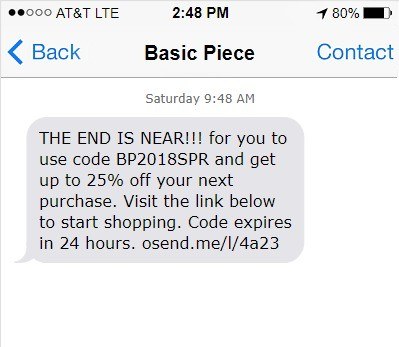
SMS in Automation Workflows
You can also add SMS to Automation Workflows for:
Welcome message
Browse abandonment
Product abandonment
Abandoned cart
Order confirmation
Cross-sell
Order follow-up
Cancellation confirmation
Customer reactivation
Birthday message
Customer feedback
Shipping Confirmation
Custom trigger message
💡 Tip: Combine SMS with email for maximum impact. For example, send an SMS reminder followed by an email with a discount code.
SMS Message Restrictions
Character limit: Keep messages under 160 characters. Messages longer than 160 characters are split into multiple SMS and cost more. Special characters (e.g., emojis) reduce the limit to 70 characters per SMS.
No open rate tracking: We don't track SMS opens. Add a clickable link to track engagement via click rate.
Sender name display: The display of a custom sender's name depends on the recipient's country. Check here if your country supports sender names. The US and Canada don't support custom sender names; instead, a dedicated phone number is displayed.
💡 Tip: Start your message with your brand name (e.g., "ACME: Flash sale...") so recipients recognize you immediately.
Character Limit for SMS
Please take a look at the table below to see how special characters in your message (e.g., emojis) can affect the number of SMS you are charged for.
Number of SMS | Maximum GSM characters | Maximum Unicode characters |
1 | 160 | 70 |
2 | 306 | 134 |
3 | 459 | 201 |
4 | 612 | 268 |
5 | 765 | 335 |
6 | 918 | 402 |
7 | 1071 | 469 |
8 | 1224 | 536 |
9 | 1377 | 603 |
When you send a message whose text exceeds the maximum number of characters per SMS, we will automatically split the message, add a special header (User Data Header), and send multiple SMS to the carriers.
What is a User Data Header?
The User Data Header (UDH) takes up 6 bytes and instructs the receiving device how to reassemble the SMS segments so that your whole message will be shown as one SMS on the receiving handset. Due to the inclusion of concatenation headers (UDH), the maximum number of characters per concatenated (long) message is slightly reduced. In GSM-7 (plain text) encoding, it takes 7 characters; in UCS-2 (special characters, emojis), it takes 3 characters.
Can You Explain the Math Around Characters per Message?
Sure can! Here are some important units to start with:
SMS messages are sent in 140 bytes
1 byte = 8 bits
In GSM encoding, 1 character = 7 bits
In Unicode (UCS-2), 1 character = 16 bits
UDH = 6 bytes
Message type | Calculation | Max Characters per SMS |
GSM - 7 Single SMS | ( 140 bytes * 8 bits ) / 7 bits | 160 characters |
GSM - 7 Multiple SMS | ( ( 140 bytes - 6 bytes ) * 8 bits ) / 7 bits | 153 characters |
UCS - 2 Single SMS | ( 140 bytes * 8 bits ) / 16 bits | 70 characters |
UCS - 2 Multiple SMS | ( ( 140 bytes - 6 bytes ) * 8 bits ) / 16 bits | 67 characters |
Best Practices
Clear best practices for SMS marketing will determine whether your campaign flies or fails. Follow these tips to ensure maximum results from your next campaign:
✅ Get explicit consent. Explain what updates you'll send. If customers provide their phone number only for transactional messages (e.g., shipping updates), don't send promotional SMS.
✅Provide opt-out instructions. Include unsubscribe instructions in every promotional SMS. For US customers, this is mandatory.
✅ Start with your brand name. Begin messages with "BRANDNAME:" so recipients recognize you, especially in countries where custom sender names aren't supported.
✅ Avoid free URL shorteners. Using bit.ly or similar services is strictly prohibited. These links are flagged as suspicious and can block your messages. Use Branded SMS Shortlinks instead.
✅ Combine SMS with email. SMS adds urgency for time-sensitive offers. Use it alongside email campaigns for maximum reach.
FAQ
Do I need my own phone number to send SMS campaigns?
No. Omnisend provides a toll-free phone number for you at no cost. Go to Store Settings → SMS → Generate phone number to get yours instantly. You send SMS campaigns directly from the Omnisend platform – no personal mobile phone required.
What's the difference between SMS opt-in and TCPA consent?
SMS opt-in is explicit permission to receive SMS marketing from you (required globally). TCPA consent is a specific legal requirement for sending SMS to US and Canadian customers that includes additional disclosures (message frequency, data rates, STOP to opt-out). Omnisend signup forms can collect both automatically when you enable SMS opt-in and add the TCPA legal text block.
Why aren't my test SMS messages being delivered?
Common reasons:
Phone number format: Must be in international format (
+11231234567). Remove spaces, dashes, and parentheses.Not subscribed to SMS channel: Only subscribed contacts receive campaigns. Check the contact's profile under Audience → Contacts.
Toll-free number not verified: (US/CA only) Cannot send until verified. Check verification status in Store Settings → SMS.
No SMS credits: Confirm you have credits remaining in Store Settings → SMS.
How long does toll-free number verification take?
Verification usually takes about 5 business days, but can take up to 2 weeks. You cannot send SMS to US or Canadian recipients while a Toll-Free Number is in progress. Learn more about toll-free number verification.
How do SMS credits work? How much does one SMS cost?
SMS credits are pay-as-you-go. 1 credit = $1 USD. Pricing depends on when you subscribed:
Legacy pricing (before May 4, 2026):
US/Canada: $0.015 per message (≈66 messages per $1)
Other countries: $0.02–$0.065+ per message
Current pricing (on or after May 4, 2026):
US recipients: Pricing starts at $0.009/SMS and decreases to $0.007/SMS at the highest volume tier.
Other countries: Pricing varies by country and volume.
Long messages (>160 characters) or messages with emojis count as multiple SMS and cost more. Check SMS pricing.
What does "phone number in international format" mean, and how do I import them correctly?
International format includes the country code with a + sign: +11231234567 (for the US) or +447123456789 (for the UK). Remove all spaces, dashes, and parentheses.
Excel tip: Format the phone number column as Text before entering numbers to prevent Excel from removing the + sign. You can also add an apostrophe before the number (e.g., '+1...) to force text formatting.
Can I use SMS for countries outside the US and Canada?
Yes. Omnisend supports SMS worldwide. However, toll-free number verification is only required for sending to US and Canadian customers.
If you send SMS to countries outside the US and Canada, you can usually start sending after generating your phone number. However, SMS sending is turned off by default for some high-risk countries. To send SMS to one of these countries, enable sending under Store settings → SMS → SMS sending by country.
Why did I pay 2x, 3x, 4x the price for my campaign?
The character limit for a single SMS is 160 characters (or 70 if you use emojis). If your message is longer, it's automatically split into multiple SMS. Even though it may appear as one long message on the recipient's phone (due to concatenation), you're charged for each SMS sent.
Example: A 300-character message = 2 SMS = 2× the cost.
Can I send images via SMS?
You can send MMS messages (with images) to the United States and Canada. Learn more about MMS.
Why are my contacts non-subscribed/unsubscribed to SMS?
To receive SMS marketing, customers must provide their opt-in record and explicit consent to receive messages through the SMS channel. If they haven't opted in, they'll remain non-subscribed. Learn more about SMS opt-in methods.
Why is the SMS sender's name not showing for the recipient?
Display of the custom sender's name depends on the recipient's country. Check here if your country supports sender names. The US and Canada don't support custom sender names; instead, a dedicated phone number is displayed.
Are mobile carrier charges included in the SMS/MMS price?
Yes. You won't pay more than what's shown on the price estimation step.
What will happen if the phone number I send the SMS to is invalid?
If the phone number doesn't exist, it will bounce and be automatically unsubscribed. Learn more about SMS bounces.
My recipient did not receive the SMS message.
Check our SMS Troubleshooting article or contact our support team.
Have any additional questions? Talk to us at [email protected] or via our in-app chat.